Remove a Password from a PDF Online Free
Your bank sends every statement locked with a password, and your payslip arrives locked too. You know the password, and you just want a copy that opens when you double-click it. You can make one in under a minute, free, using tools already on your computer. Here are the three ways that work, plus the one promise no tool can keep.
Quick answer
Yes. Open the PDF, type the password, then print it and choose Save as PDF in Chrome or Edge, or choose File, then Export as PDF, in Preview on a Mac. The new copy opens without a password. This only works when you know the password, and no free tool can remove a password you forgot.
First, find out which password your PDF has
A PDF can carry two different passwords, and the fix depends on which one you're facing.
| Password type | What you see | What removes it |
|---|---|---|
| Open password | A password box appears before you can see anything | Type it once, then save a fresh copy with the steps below |
| Permissions password | The file opens, but printing, copying, or editing is blocked | The print method only works when printing is allowed |
A password box before you see anything means an open password. A file that opens but won't print or let you copy text has a permissions password.
A locked PDF also blocks the tools on this site. The Merge PDF, Split PDF, Compress PDF, and Delete / Rotate PDF Pages tools can't open a protected file, so unlock it first.
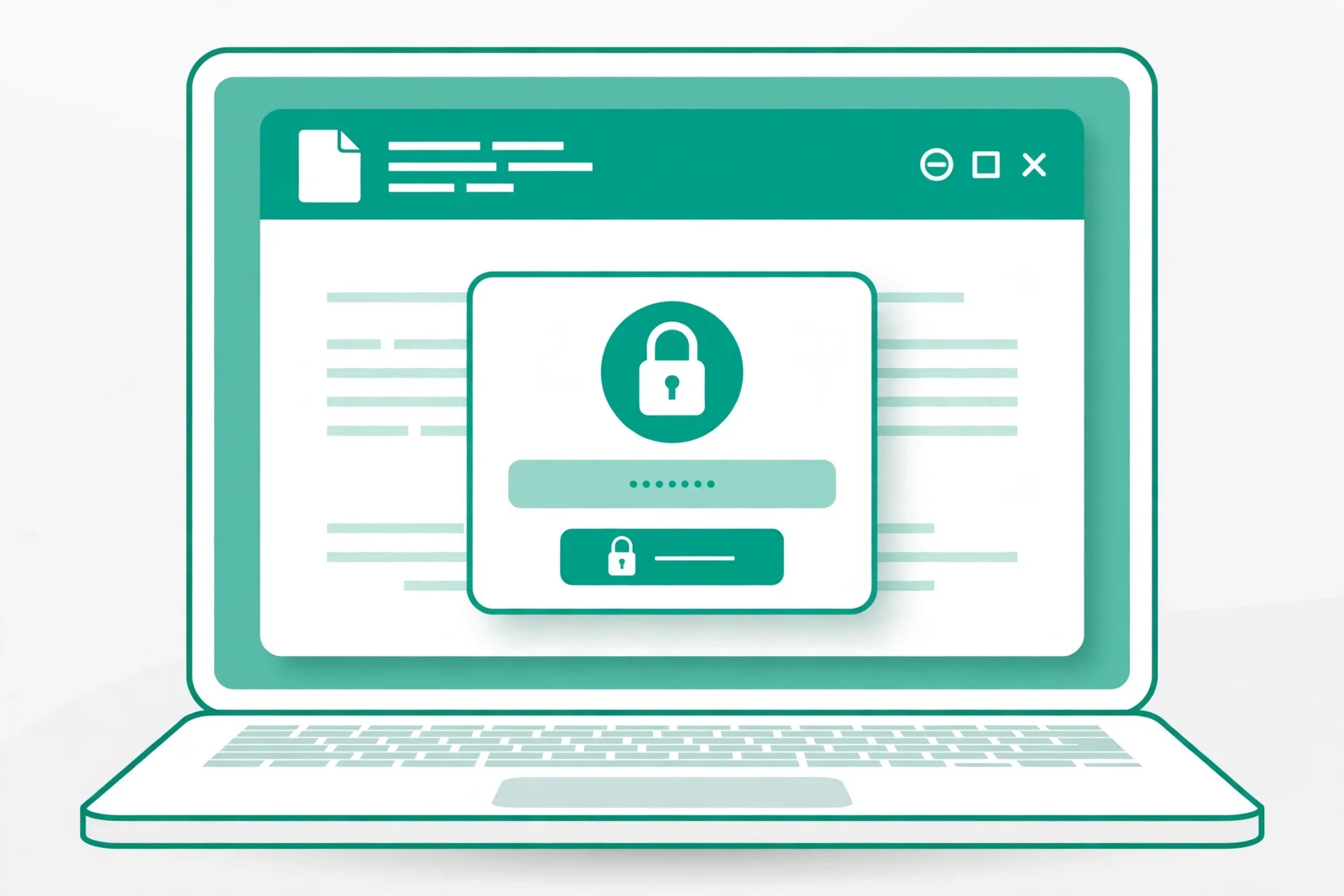
Method 1: Chrome or Edge, on any computer
This is the fastest way. It works on Windows, Mac, and Chromebook, since Chrome and Edge have a built-in PDF viewer and a Save as PDF printer.
Step 1: Open the PDF in your browser. Drag the file into a Chrome or Edge window, or right-click the file and choose Open with, then Google Chrome.
Step 2: Type the password. Type it once and the browser shows the document.
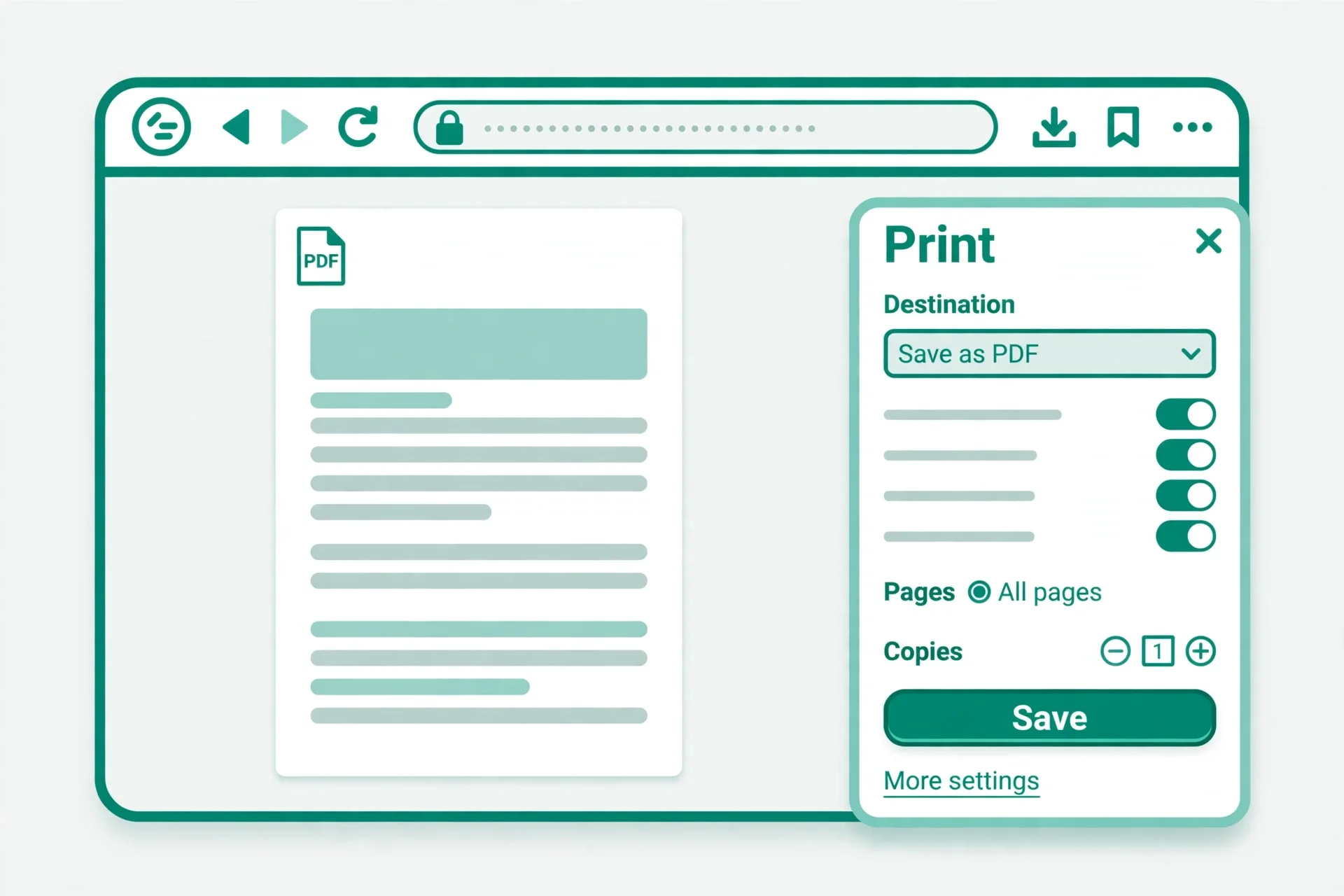
Step 3: Open the print dialog. Press Ctrl + P on Windows or Command + P on a Mac, or click the printer icon in the PDF viewer.
Step 4: Set the destination to Save as PDF. Change the Destination to Save as PDF. Leave Pages on All unless you only want some pages.
Step 5: Save the new copy. Click Save and name it something clear, like statement-open.pdf. The new copy opens without a password.
Printing makes a fresh PDF, so text stays selectable and links usually survive. Form fields and signatures don't carry over. If the print button is greyed out, the file blocks printing, and the fix is in the mistakes section below.
Method 2: Preview on a Mac
Preview ships with every Mac, costs nothing, and uploads nothing.
Step 1: Open the PDF in Preview. Double-click the file, then type the password. If another app opens instead, right-click it, choose Open With, then Preview.
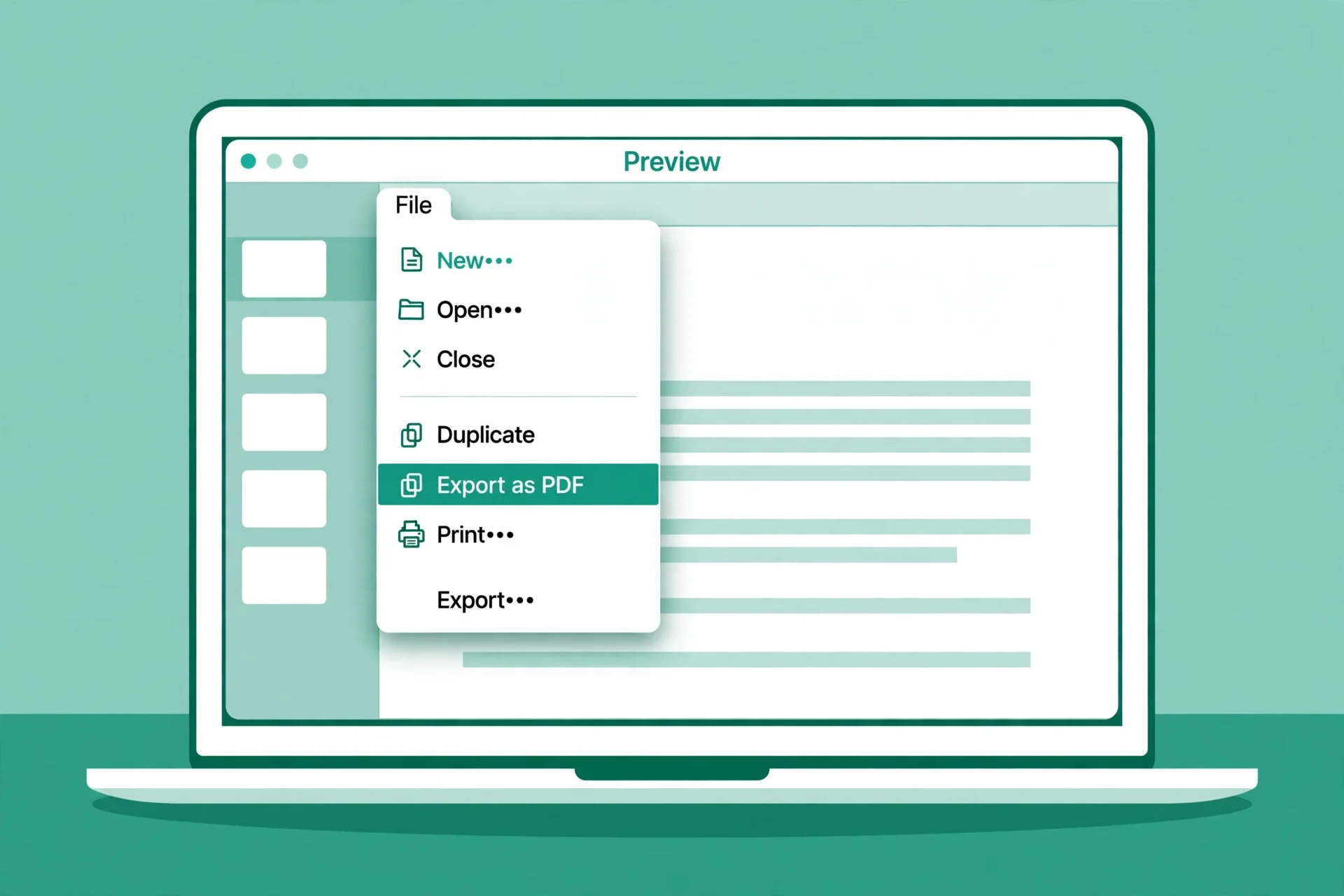
Step 2: Use the print route. Choose File, then Print. In the print dialog, click the PDF button at the bottom left and choose Save as PDF, then name the file and save it.
Step 3, the other way: use Export. Choose File, then Export, set Format to PDF, and make sure the Encrypt box is unchecked, then save. On newer macOS versions, File, then Edit Permissions, lets you untick Require Password to Open Document, though that changes the file itself.
Preview keeps text selectable and quality intact, just like Chrome. Form fields and signatures don't survive a printed copy, and if the file blocks printing, this route fails the same way.
Method 3: free online unlock tools
Use an online tool when you're on a borrowed computer, or when the browser method failed. Upload the PDF, type the password, download a copy without it. Check these points first if the file might hold your bank details.
Some tools redraw every page as an image. LuraPDF, for example, redraws each page at 144 dpi, so the text in the unlocked copy is no longer selectable or searchable. Use the browser method above if you'll need to copy text later.
File size caps are common. Free plans usually cap files at around 50 to 100 MB each, which suits statements and forms.
Your file and your password travel to their server. That's the real cost of a free online tool, unless it runs in your browser. For a bank statement or a contract, that matters. Prefer a tool that processes in the browser, like LuraPDF, or one that works in server memory only, like PDFWix. For anything sensitive, the Chrome method above is still the safest choice.
No tool here can open a file when you don't know the password. Any site that claims it can is selling something else, and the next section explains why.
What no tool can do: the forgotten password
This is the part most unlock guides skip. A PDF password is real encryption, usually RC4 or AES-128 or AES-256, and a strong open password can't be worked out from the file alone. No honest free tool guesses it. If you forgot the password, try these in order before you pay anyone.
Check your password manager. If you set the password yourself, it may be saved under the file name or the sender's name.
Check the email the file came in. Banks and employers often use something they already told you, such as your date of birth, and the email usually says so.
Check your browser's saved passwords. If you opened the file before, the browser may have saved the password with it.
Ask the sender for an unlocked copy. Banks, employers, and universities resend unlocked copies every day, at no cost.
Only unlock files you own or have permission to open. Removing the password from your own bank statement is usually fine. Breaking into a file that isn't yours can break the law.
After you unlock it, check the copy
Don't delete the original yet. Spend thirty seconds checking the new copy first.
Open the copy. It should open with no password prompt at all. If it still asks, you saved the wrong file, or you exported with Encrypt still checked in Preview.
Select a line of text and copy it. If you can't select text, the tool redrew the pages as images. Redo it with the Chrome method if selectable text matters.
Check the page count and the links. The copy should have the same number of pages as the original.
Once the copy checks out, use it with the tools on this site: merge it with other files, pull out pages, or remove and rotate them. Keep the original locked copy until you're sure the new one is good.
Common mistakes and fixes
"Incorrect password" though you're sure it's right. Check Caps Lock first, then check for a space at the start or end of the password. PDF passwords are case-sensitive.
Save as PDF is greyed out. The file blocks printing with a permissions password. You need the permissions password itself, or an unlock tool that accepts it.
The new file is much bigger than the original. Printing re-creates the pages, so the copy can grow. Compress it with the Compress PDF tool before sending it.
The file still asks for a password after unlocking. You saved over the wrong file, or you exported from Preview with the Encrypt box still checked. Save a fresh copy and check the Encrypt box is empty.
You uploaded a sensitive file to a random site. You can't take it back. Use the browser method next time, so the file never leaves your computer.
Frequently asked questions
Can I remove a password from a PDF for free?
Yes. Open it in Chrome or Edge, type the password, press Ctrl + P or Command + P, choose Save as PDF, and save. Preview on a Mac does the same thing with File, then Export as PDF. No software to install, no account, no payment.
How do I remove a password from a PDF without software?
Use your browser. Drag the PDF into Chrome or Edge, type the password, print it, and set the destination to Save as PDF. The new copy opens without a password, and nothing is uploaded anywhere.
Can I unlock a PDF if I forgot the password?
No, not with any honest free tool. PDF passwords use AES-128 or AES-256 encryption, and a strong password can't be guessed from the file. Check your password manager, the email the file came in, and your saved browser passwords, or ask the sender for an unlocked copy.
Does removing a password change the PDF quality?
The Chrome and Preview methods print the pages into a new PDF, so the text and images keep their quality, but form fields and digital signatures don't carry over. Some online tools redraw each page as an image, which makes the text unselectable and softens fine print. Use the browser method when quality matters.
Is it legal to remove a password from a PDF?
Removing the password from a file you own or have permission to open, such as your own bank statement, is generally fine. Removing a password from a file that isn't yours, or sharing a file you were told not to share, can break the law or the terms you agreed to. When in doubt, ask the sender.
Can I remove a password from a PDF on my phone?
Yes, with the same print trick. On Android, open the file in Chrome, tap the menu, choose Share, then Print, and save as PDF. On iPhone, open the PDF, tap Share, then Print, then pinch out on the preview to save it as a PDF. You still need the password, and it fails when printing is blocked.
Try the free tool
The short version: if you know the password, you need nothing new. Open the file in Chrome or Edge, print it to Save as PDF, and you've got a clean copy in under a minute. On a Mac, Preview does the same. If you forgot the password, ask the sender for an unlocked copy.
This site doesn't have an unlock tool yet, so the methods above use the browser and apps already on your computer. Once your file is unlocked, the free tools here take over. Open the free Merge PDF tool to combine it with other files, or read how to merge PDF files online free.
How to check the steps yourself: follow the Chrome print-to-PDF steps and the Preview export steps with a test PDF you own, and check whether the copy opens without a password and whether the text stays selectable. The two-password distinction and the encryption types follow The Tools Kit's guide, Setapp's Mac guide, and FreePDFly's unlock guide. Menu labels vary between versions.
Privacy note: the Merge PDF, Split PDF, Compress PDF, JPG to PDF, and PDF to JPG tools on this site need no account and no signup. Your files are processed in your browser and never uploaded or stored. When you close the tab, the working files disappear along with the session.
Last updated: November 9, 2026
Related tools and guides
Is It Safe to Use Online PDF Tools?
The honest answer: what happens to your file when you upload it.
Read article →