Best Free Alternatives to Smallpdf
Smallpdf is the first name most people reach for when a PDF needs merging, compressing, or converting. It's fast, it looks good, and it works. Then, usually right in the middle of a real job, it stops. The free plan allows about two tasks a day, and after that you're asked to pay. This guide compares seven free alternatives that do the same jobs without that wall, and tells you which one fits your situation.
Quick answer
If you want a free alternative to Smallpdf with no daily limit, PDF24 Tools is the place to start. It covers merge, split, compress, convert, OCR, and signing, with no account and no stated daily quota. If you handle sensitive files, use a browser-based tool like the ones on this site, where the file never leaves your device. If you need desktop software, PDFgear and PDFsam Basic are both free and work offline.
Why people look for a Smallpdf alternative
Smallpdf earned its popularity honestly. The interface is clean, the tools are fast, and a first-time user can merge two PDFs in under a minute. The free plan is the problem, not the product. The free tier allows about two document tasks per day. Merge two files, then compress the result, and your allowance is gone. You wait until tomorrow or you pay.
The paid plan, Smallpdf Pro, costs around $15 a month, or about $10 a month when billed annually. That's fair for someone who works with PDFs every day. It's a lot for a student who needs to merge an assignment once a week, or an office worker who compresses a report twice a month.
There are two more limits worth knowing. First, the free plan keeps the heavier features behind the paywall. Directly editing existing text in a PDF and OCR on scanned pages are Pro features, so a scanned document stays a picture even after you run it through the free tools. Second, Smallpdf is a server-based tool. Your file is uploaded, processed on servers in the European Union, and deleted within about an hour for account holders. That's normal for this kind of service, but it means a passport scan or a contract passes through infrastructure you can't see.
None of this makes Smallpdf a bad tool. It makes it the wrong tool for two common situations: people who need more than two tasks a day, and people who don't want their files uploaded at all. The alternatives below cover both.
The 7 alternatives at a glance
Free plans change often, and vendors rarely print every limit on their pricing page. The table below uses the limits each service states publicly, or that independent comparisons recorded in 2026. Check the pricing page before relying on a limit for an important job.
| Tool | Free limit | Account needed? | Where files are processed | Best for |
|---|---|---|---|---|
| PDF24 Tools | No daily limit stated | No | Server (web), local (desktop app) | Everyday jobs, no signup |
| iLovePDF | Per-tool batch and size caps | No, account raises limits | Server | Large files, batch work |
| Sejda | 3 tasks per hour, 50 MB / 200 pages | No | Server | Occasional use, honest limits |
| PDFgear | No daily limit stated | No | Server (web), local (desktop) | Editing and converting |
| PDFsam Basic | Unlimited | No | Local, on your computer | Split, merge, rotate offline |
| Stirling PDF | Unlimited | No | Local, self-hosted | Privacy, teams, IT users |
| PDF + Text Tools | Unlimited | No | In your browser, no upload | Sensitive files, quick jobs |
Read the table as a starting point, not a verdict. A tool with "no daily limit" can still be wrong for you if it uploads your files to a server, and a tool with a small hourly cap can be perfect if you only merge one file a week. The sections below take each one in turn.
PDF24 Tools: the most generous free tier
PDF24 Tools is run by Geek Software GmbH in Germany, and it's been around since 2006. Its FAQ describes the web tools as free of charge and without restriction, including for companies. There's no Pro tier waiting behind the free tools, no daily quota, and no file-size limit stated on the site. That makes it the closest thing to a direct Smallpdf replacement with the paywall removed.
The tool set is large, more than 30 tools, covering merge, split, compress, convert, OCR, signing, and protecting PDFs. There's also a free desktop app, PDF24 Creator, which works offline on Windows. The web tools are funded by ads, so expect display advertising on the pages. The web tools also upload your files to PDF24 servers for processing, which is the same model Smallpdf uses, so the privacy trade-off is the same. If your file is sensitive, that matters more than the price.
PDF24 is the best first pick when you want a free Smallpdf alternative that just works in the browser, with no account and no counting of tasks. It's not the best pick for identity documents, contracts, or anything you wouldn't want sitting on someone else's server.
iLovePDF: the biggest file limits
iLovePDF is a Barcelona-based suite with the highest per-tool file limits of the server-based tools in this list. Most tools accept files up to 100 MB on the free tier. Compress accepts 200 MB, and Redact and Compare go to 400 MB. Office, OCR, and PDF conversion tools are capped at 15 MB on the free plan.
The limits show up in batch sizes instead of a daily count. Merge takes up to 25 files per task, Image to PDF takes 20, Organize takes 5, Sign takes 3, Compress takes 2, and Split takes 1. That's enough for most real jobs. A student merging a five-file assignment, or an office worker compressing a scanned report, stays inside the free limits easily.
iLovePDF also has mobile and desktop apps, which helps when you work on a phone. The trade-off is the same as PDF24: files are uploaded to iLovePDF servers, and the free tier is funded by ads and by nudges toward the paid plan. Pick iLovePDF when your files are large and ordinary, like lecture slides, public reports, or a photo-heavy PDF that needs shrinking.
Sejda: small limits, clearly stated
Sejda is the most honest tool on this list about what free means. The free tier allows 3 tasks per hour, documents up to 50 MB and 200 pages, OCR files up to 10 pages, images up to 5 MB, and combining up to 30 files. Files are stored for about 2 hours. Those numbers are printed plainly, so you know exactly where you stand before you start.
Three tasks an hour is a real limit. If you're merging, then compressing, then converting in one sitting, you'll hit it. But for occasional use, one or two tasks a week, Sejda is fast and clean, and the stated deletion time is short. The interface is simple, and the tool set covers the usual jobs: merge, split, compress, convert, edit, and sign.
Pick Sejda when you do PDF jobs rarely and you value knowing the limits in advance over having no limits at all. Skip it when you're working through a backlog of files in one afternoon.
PDFgear: free editing without a subscription
PDFgear earns its place for one job the other free web tools handle badly: editing. Most free PDF tools let you merge, split, and compress, but changing the text already inside a PDF is usually a paid feature. PDFgear offers a free desktop editor and free online tools with no daily limit stated and no account required.
The desktop app runs locally, so files you edit there never leave your computer. The online tools work like other web suites and upload the file for processing. The tool set covers merge, split, compress, convert, and editing, plus a signature feature. The interface is less polished than Smallpdf, and the free product is supported by promoting the company's other software, but the core tools work as promised.
Pick PDFgear when you need to fix a typo inside a PDF, fill in a form, or annotate a document, and you don't want to pay for it. For a plain merge or compress, the browser-based tools on this site are faster, because there's nothing to install.
PDFsam Basic: free desktop software for page jobs
PDFsam Basic is a free, open-source desktop app for Windows, Mac, and Linux. It does a small set of jobs and does them well: merge, split, extract pages, rotate, and mix pages from different files. There's no daily limit, no account, and no upload, because everything runs on your own computer.
The trade-off is scope. PDFsam Basic doesn't convert PDFs to Word, doesn't compress, and doesn't do OCR. It's a page tool, not a full suite. It's also a program you install, so it's not the right pick when you're on a borrowed computer or a phone.
Pick PDFsam Basic when you regularly split and merge large documents on your own computer and you want a tool that never phones home. It's the quiet, reliable option for people who do the same page jobs every week.
Stirling PDF: the self-hosted option
Stirling PDF is a free, open-source tool you run yourself, either on your own computer or on a server your team controls. Because you host it, there's no daily limit, no account with a vendor, and no third party ever sees your files. That makes it the strongest privacy option in this list for teams and technical users.
The catch is setup. Self-hosting means installing and running software, usually with Docker, which is straightforward for an IT person and a barrier for everyone else. There's also a hosted demo, but the point of Stirling PDF is running it yourself. The tool set is large, covering merge, split, compress, convert, OCR, signing, and more.
Pick Stirling PDF when you work in IT, or your team handles sensitive documents and you want a PDF suite under your own control. Skip it when you just need to merge two files once. A browser tool finishes the job before Stirling PDF finishes installing.
PDF + Text Tools: free, with no upload at all
The tools on this site work differently from every service above. Merge PDF, Split PDF, Compress PDF, JPG to PDF, and PDF to JPG run entirely in your browser using pdf-lib. Your file is processed on your device and never uploaded, never stored, and never shared with a third party. When you close the tab, the working files disappear with the session. For splitting, the free Split PDF tool on this site covers the same job Smallpdf charges for.
That design removes the two problems that push people away from Smallpdf. There's no server doing the work, so there's no daily quota to enforce and no subscription to sell you. There's also nothing to leak, store, or delete later, because no copy of your file ever leaves your device. The tools need no account and no signup, and they keep working offline once the page has loaded.
Browser-based tools do have limits. Very large files can be slow, because your device does the work instead of a server. Scanned PDFs need OCR, which needs server power or a desktop app, so that job belongs elsewhere. For everyday jobs, merging, splitting, compressing, converting, and rotating, the browser is fast enough.
Use the free tools on this site when the file matters: a visa application, a contract, a bank statement, or anything with your name and address on it. Use PDF24 or iLovePDF when the file is large and ordinary and you need a feature this site doesn't offer, like OCR.
What "free" really costs
Every free PDF tool is paid for somehow. How it's funded shapes the free tier you get, and knowing the model tells you what to expect.
Ad-funded tools, like PDF24, give you the most generous limits, because ads pay per visitor rather than per task. The cost is advertising on the page, plus the analytics scripts and tracking pixels that come with it. Subscription-funded tools, like Smallpdf and iLovePDF, give you a small free taste, then charge for the rest. The cost is the daily cap, and the free tier gets tighter over time as the company pushes conversions.
Desktop tools, like PDFsam Basic and the PDFgear app, cost you an install and some disk space, but nothing per task. Self-hosted tools, like Stirling PDF, cost you setup time. Browser-based tools, like the ones on this site, cost almost nothing to run, because there's no server doing the work, which is why they can offer unlimited use with no account.
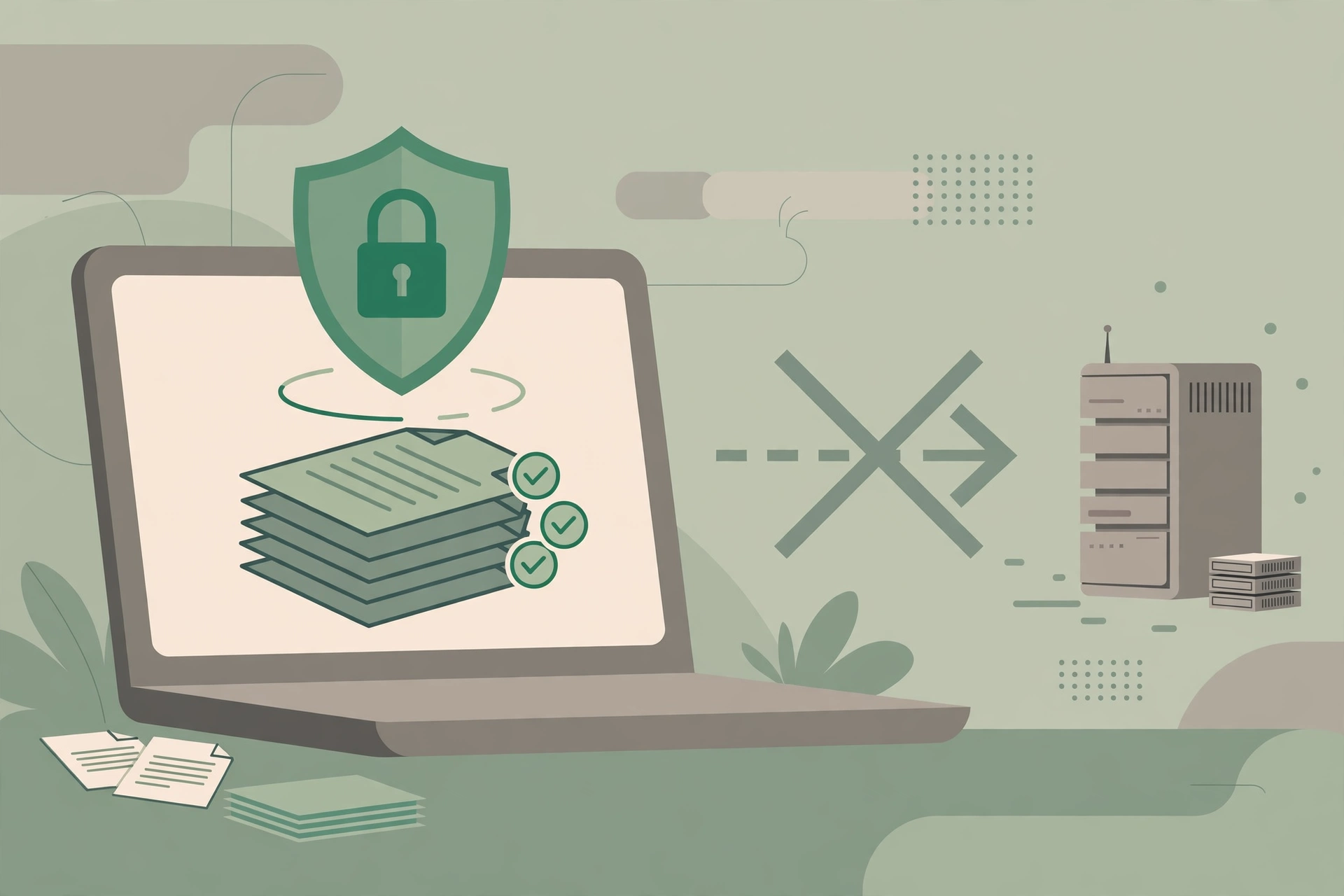
There's one more cost that never appears on a pricing page: your file. A server-based free tool receives a copy of your document. Reputable services delete the main copy on a timer, commonly an hour, but backups, caches, and logs follow their own schedules, and you can't verify the deletion yourself. That's the real price of a free server-based tool, and it's the same whether the tool is Smallpdf or one of its alternatives. For ordinary files it's a fair trade. For sensitive files it isn't.
Which one should you pick?
Match the tool to the job, not to the brand. Start from the file, then the frequency, then the feature.
You merge or compress a few files a week, and they are ordinary. Use PDF24 Tools. No account, no daily limit, and every common tool in one place.
Your files are large, like a 150 MB scanned report. Use iLovePDF. Its free file limits are the highest of any server-based tool here.
You only do PDF jobs once in a while. Use Sejda. Its limits are small but clearly stated, and the deletion time is short.
You need to edit text inside a PDF. Use PDFgear. It's the only free option here that treats editing as a core feature rather than a paid extra.
You split and merge on your own computer every week. Install PDFsam Basic. Nothing ever uploads, and the tasks never run out.
You handle sensitive documents for a team. Run Stirling PDF yourself, or use a browser-based tool for one-off jobs. Either way, nothing leaves your control.
Your file has your name, address, or ID number on it. Use the free Merge PDF tool on this site, or the free Compress PDF tool. The file never leaves your device, so trust never becomes a question.
If you only remember one rule, make it this one: the more sensitive the file, the closer to your device the processing should happen. Price is the wrong thing to save on when the file is a passport scan.
Common mistakes and fixes
Picking a tool by feature count instead of by limit. Fix it by checking the free tier first. A tool with 30 features is no use if it stops after two tasks.
Uploading a passport or bank statement to a free server-based tool. Fix it by using a browser-based tool or a desktop app for identity papers and financial documents.
Assuming "free" means unlimited. Fix it by reading the pricing page before an important job. Most free plans hide the cap until you run into it.
Starting a multi-step job on a capped tool. Fix it by counting the steps first. Merge plus compress plus convert is three tasks, and a 2-task daily limit stops you halfway.
Paying for Pro to do one job once. Fix it by checking the free alternatives first. A one-off merge is never worth a subscription.
Ignoring where the file is processed. Fix it with the two-minute Network tab check in our guide to whether online PDF tools are safe. If a large upload shows up while the tool runs, the file left your device.
Frequently asked questions
What is the best free alternative to Smallpdf?
PDF24 Tools is the best free alternative overall, with no daily limit stated, no account, and more than 30 tools. For sensitive files, a browser-based tool like the ones on this site is better, because the file never leaves your device.
Is there a free PDF tool with no daily limit?
Yes. PDF24 Tools states no daily quota, PDFsam Basic and Stirling PDF run locally with no limits, and the browser-based tools on this site have no server, so there's no quota to enforce. Always check the current pricing page, because free plans change.
Why does Smallpdf only allow 2 free tasks a day?
Smallpdf's free plan is designed as a trial of the paid product. About two document tasks per day are free, and after that you're asked to subscribe to Smallpdf Pro, which costs around $15 a month, or about $10 a month billed annually.
Are free PDF tools safe for sensitive documents?
Server-based free tools upload your file, process it elsewhere, and delete the main copy on a timer, commonly an hour. That's fine for ordinary files. For passports, bank statements, or contracts, use a browser-based tool or a desktop app so the file never leaves your device.
Which free alternative can edit text inside a PDF?
PDFgear offers free PDF editing on desktop and online. Most other free tools, including Smallpdf's free plan, keep direct text editing behind a paywall. Editing scanned PDFs still needs OCR first, though.
Can I merge PDFs for free without signing up?
Yes. PDF24 Tools, Sejda, PDFgear, and the free Merge PDF tool on this site all work without an account. Open the tool, add your files in order, merge, then download the result.
Try the free tool
The short version: PDF24 Tools is the best free Smallpdf alternative for everyday jobs, iLovePDF handles the biggest files, and a browser-based tool is the right pick whenever the file is sensitive. If your file would embarrass you, cost you money, or cause trouble at work in a breach disclosure, don't upload it to any server-based tool, free or paid.
When you're ready, open the free Merge PDF tool to combine files without an upload, or the free Compress PDF tool to shrink a file for email. If you work with PDFs on your phone, read how to merge a PDF on your phone without an app. If you need to merge files for a visa application, read how to merge PDFs for a visa application first.
Sources and checks: the limits above come from the pricing and FAQ pages of the services named here and independent 2026 comparisons of free PDF tools, including the Coda One comparison of six free PDF tools and the Filuni list of Smallpdf alternatives. The tools on this site run in the browser with pdf-lib and no upload, as their tool pages state. Free limits change often, so check each service's pricing page before relying on a limit.
Privacy note: the Merge PDF, Split PDF, Compress PDF, JPG to PDF, and PDF to JPG tools on this site need no account and no signup. Your files are processed in your browser, never uploaded, never stored, and never shared with third parties. When you close the tab, the working files disappear with the session.
Last updated: November 6, 2026
Related tools and guides
Is It Safe to Use Online PDF Tools?
What happens to your upload, and how to check a tool yourself in 2 minutes.
Read article →