Word Count in Apple Pages: Every Way to Check It
You finish a draft in Pages, and a submission form asks for the word count. You look at the bottom of the screen, and there's nothing there. Pages has a word counter, but it stays hidden until you turn it on, and the switch sits in a different place on Mac, iPhone, iPad, and the web. This guide shows you each one, plus how to count a single paragraph and how to switch the counter to characters or pages.
Quick answer
Pages has a built-in word count on every device, but it's off by default. On a Mac, open your document, click View, and choose Show Word Count, or press Shift, Command, and W. On an iPhone, tap More, then View Options, then Show Word Count. On an iPad, tap View Options and turn on Word Count. In a browser, sign in at iCloud.com, open Pages, and use the same View button. The counter appears at the bottom of the document, and tapping it shows characters, paragraphs, and pages too.
Why Pages hides the count
Word puts the word count in the status bar where you can see it all the time, and Google Docs keeps it one menu click away. Pages takes a different approach: the counter is a small floating box that only appears when you ask for it. Apple hides it by default, probably because most people writing a letter or a flyer never need a running count, and a box at the bottom of the page would get in the way of the layout. The trade-off is that the people who do need it, students with an essay limit or writers with a target, have to know where the switch is.
There's no setting in Pages preferences that turns the counter on for good. You turn it on per document, from the View menu or its mobile equivalent, and the counter stays visible while you work. Once you know the four paths in this guide, showing the count takes a few seconds on any device you own. The steps below were checked against Apple's own support pages and current guides for Pages 15.3, so the menu names match what you'll see on a recent version.
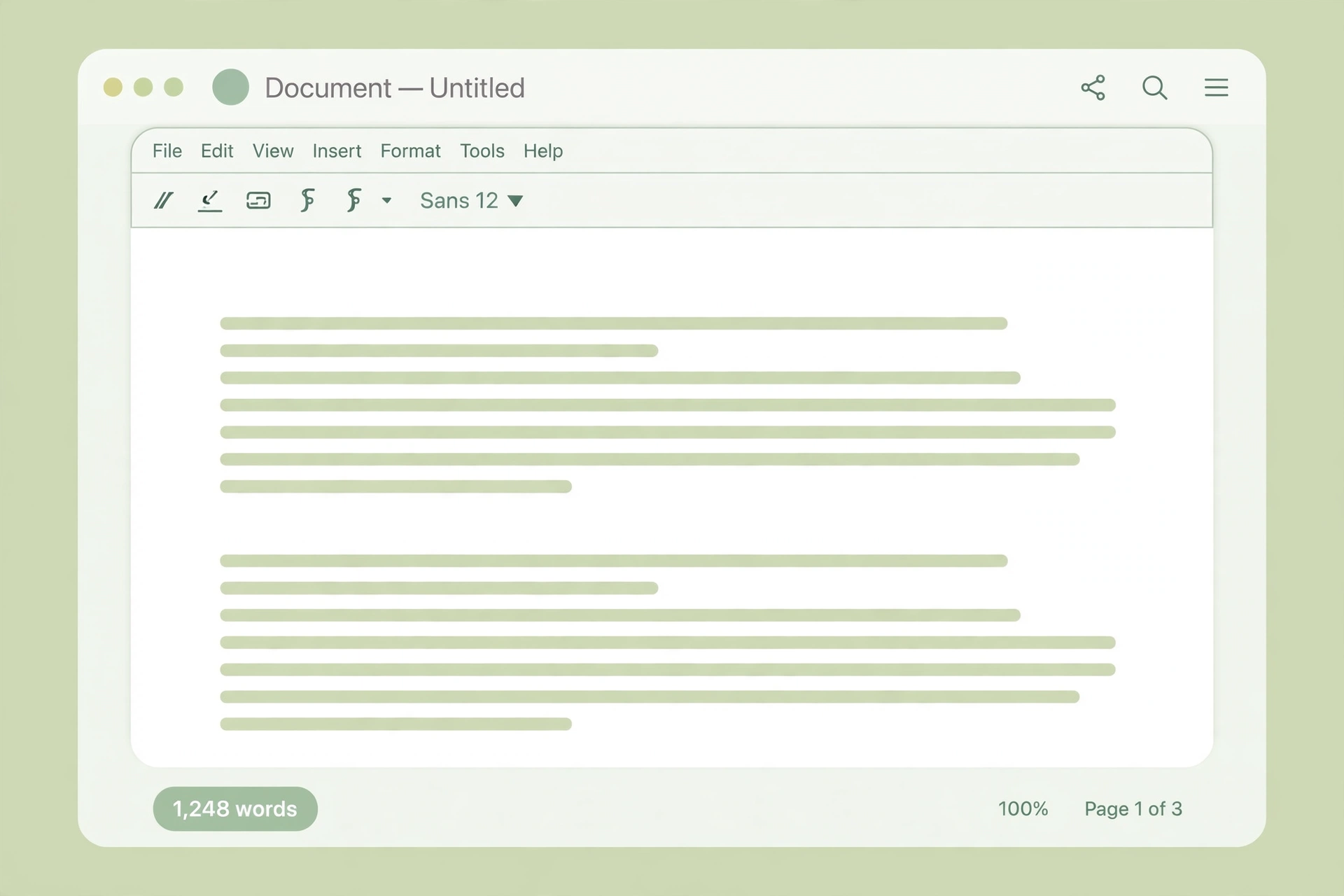
Word count in Pages on Mac
The Mac version gives you two ways to show the count, and both take about five seconds.
Step 1: Open your document in Pages. Any document works, whether it's a blank page or a long essay.
Step 2: Click the View button in the toolbar and choose Show Word Count. You can also use the View menu in the menu bar at the top of the screen and pick the same item. A small counter appears at the bottom of the document.
Step 3: Read the count. The box shows the total words in the document, and it updates live as you type, delete, or paste.
If you'd rather use the keyboard, press Shift, Command, and W with the document open. The same shortcut hides the counter again, so it works as a toggle. To hide it with the mouse, open the View menu and choose Hide Word Count.
The counter does more than count words. Click the small arrows on its right side and it switches to characters with spaces, characters without spaces, paragraphs, or pages. The menu item itself can change its name to match the statistic you last showed, so if you switched to characters yesterday, it may read Show Character Count today. It's the same switch, so click it anyway. You can also drag the counter to another spot on the page if it covers text you need to see.
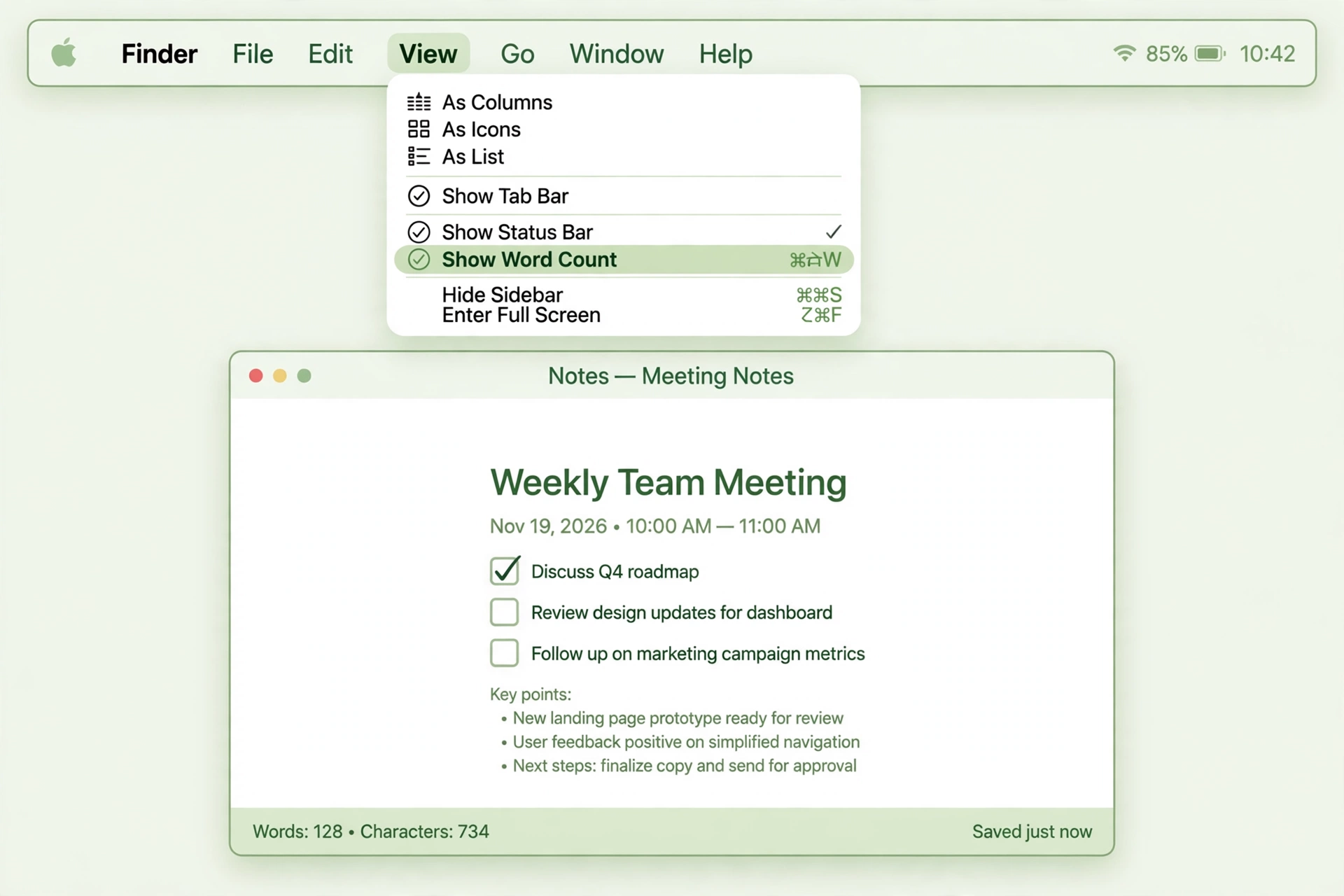
Word count in Pages on iPhone
On a phone, the switch is buried one level deeper, which is why most iPhone users never find it. The steps work the same in the current version of Pages for iPhone.
Step 1: Open your document in the Pages app.
Step 2: Tap More at the top of the screen. It's the button with three dots in the top-right corner.
Step 3: Tap View Options, then tap Show Word Count. The counter appears near the bottom of the screen.
Tap the counter itself to see the other statistics: characters with and without spaces, paragraphs, and pages. Select a passage first, and the counter shows the count for that passage only, which is handy when you need the length of one section rather than the whole document. Drag the counter to a corner if it sits over your text.
One detail worth knowing: once you turn the counter on for a document on iPhone, it stays on for other Pages documents you open until you turn it off again. To hide it, go back to More, then View Options, and choose Hide Word Count. If you have an external keyboard connected to your iPhone, the Mac shortcut Shift, Command, and W works there too.
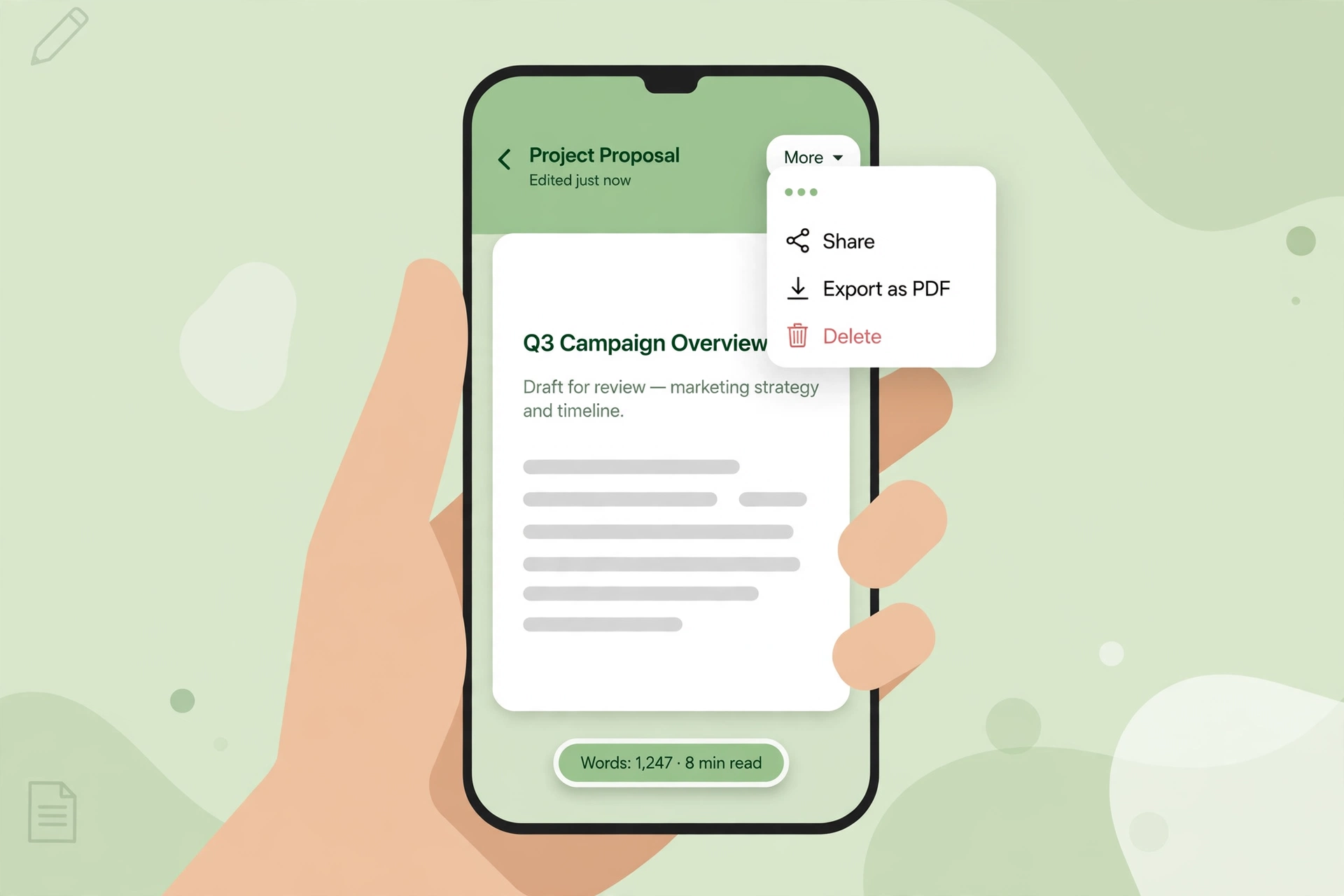
Word count in Pages on iPad
The iPad path is the shortest of the three mobile routes, because the View Options button sits right in the toolbar.
Step 1: Open your document in the Pages app.
Step 2: Tap the View Options button near the top-left corner of the toolbar. It looks like a rectangle with a margin line down one side.
Step 3: Turn on the Word Count switch. The counter appears at the bottom of the document. Tap anywhere in the document to close the View Options window.
As on the other devices, tapping the counter shows the rest of the statistics, and selecting text first makes the counter show only the selection. To move the counter out of the way, drag it to a corner. To hide it, open View Options again and turn the Word Count switch off. If your iPad has a keyboard attached, Shift, Command, and W toggles the counter the same way it does on a Mac.
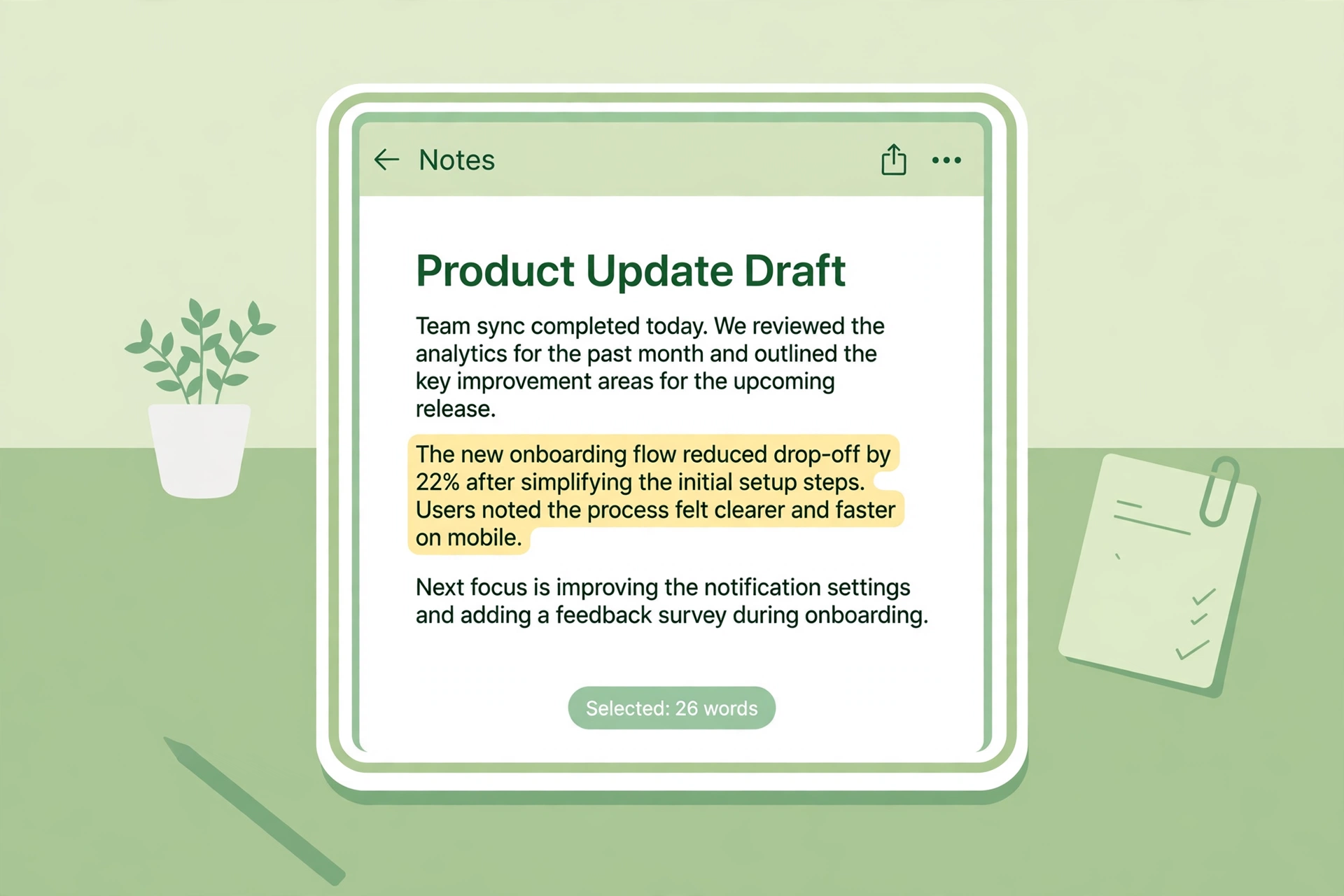
Word count in Pages for iCloud
If you're on a Windows PC, a Chromebook, or someone else's Mac, you can still check the count without installing anything. Pages for iCloud runs in a browser, and you only need an Apple ID, not an Apple device.
Step 1: Sign in at iCloud.com with your Apple Account. Open Pages from the iCloud home screen.
Step 2: Open the document you want to count. You can also upload a Pages file from your computer first, then open it.
Step 3: Click the View button in the toolbar and choose Show Word Count. The counter appears at the bottom of the document, exactly as it does in the Mac app. Click the arrow on the counter to see characters, paragraphs, and pages.
Selecting a passage before you turn the counter on makes it show that passage, and clearing the selection brings back the whole-document total. To hide it, open the View menu and choose Hide Word Count. This browser route is also the simplest way to check the count of a Pages file someone sent you when you don't have Pages installed.
Count part of a document
Whole-document totals aren't always what you need. An assignment might ask for the length of one chapter, or a client might ask how long the introduction is. Pages handles this the same way on every device: select the text first, and the counter switches to the selection.
On a Mac, click and drag over the passage, or click at the start, hold Shift, and click at the end. On iPhone and iPad, press and hold on a word, then drag the handles to cover the passage. The counter at the bottom changes at once to show the words in your selection, and it goes back to the full total as soon as you click or tap somewhere else to clear it.
This selection trick also answers a common confusion. If the number at the bottom looks far too small, you probably have text selected without noticing it, maybe from an accidental drag. Click into an empty part of the document to clear the selection and the full count comes back. The same applies in Pages for iCloud, where clearing the selection restores the whole-document total.
The counter also switches between statistics. Click the arrows on the Mac counter, or tap the counter on iPhone and iPad, to move between words, characters with spaces, characters without spaces, paragraphs, and pages. Character counts matter when a form or a bio has a character limit rather than a word limit, and the pages figure is the one to check when a limit is given in pages. If you want to know how many pages a word count turns into in a typical document, the words to pages chart shows the usual counts for single and double spacing.
Count a Pages file without opening Pages
There are times when the built-in counter isn't the fastest route. You might need a reading time estimate, a sentence count, or a count that includes text pasted from several documents at once. In that case, copy the text out of Pages and paste it into a counter in your browser.
Step 1: Select the text in Pages. On a Mac, press Command and A to select everything in the document. On iPhone or iPad, tap Select All from the selection menu.
Step 2: Copy it with Command and C, or Copy from the menu.
Step 3: Open the free Word Counter tool and paste with Command and V. The word count appears at once, along with characters with and without spaces, sentences, paragraphs, and reading time.
This paste method is also useful when the file isn't in Pages at all. If someone sends you the text in an email, a message, or a PDF, paste it into the same counter instead of converting the file first. And if the limit you're checking is a character limit, the Character Counter tool shows characters with and without spaces side by side, which is the same pair of figures the Pages counter shows.
Common mistakes and fixes
The menu says Show Character Count, not Show Word Count. This is the most common confusion on the Mac. The menu item takes the name of the statistic you last showed, so if you last looked at characters, it reads Show Character Count. It's the same switch. Click it, and the counter appears. Then use the arrows on the counter to switch back to words.
The count looks too small. You almost certainly have text selected. The counter shows the selection when anything is highlighted. Click into the document to clear the selection and the full total returns.
The counter vanished after an update. Pages updates can reset the counter to hidden, and switching devices doesn't carry the setting over. Turn it on again with the steps for your device. On iPhone, remember that the counter stays on across documents until you switch it off, so if it's gone, it was turned off somewhere along the way.
You're looking for a word count button in the toolbar. There's none. Pages has no toolbar button or status bar count like Word does. The only switch is the View menu on Mac and in iCloud, or the View Options panel on iPhone and iPad.
The iPhone and iPad steps look different from each other. They're different on purpose. On iPhone, the switch is under the three-dot More button, then View Options. On iPad, the View Options button sits directly in the toolbar. Older guides mix the two up, so follow the steps for the device in your hand.
You need the count for a file you can't open. If the document is in a format Pages can't open, or you're on a computer without an Apple ID, paste the text into the Word Counter tool instead. It needs no account and no install.
Which method should you pick?
The right method is the one for the device in front of you, because the counter itself is the same everywhere. Use the built-in counter when you're writing in Pages and want a live number that updates as you type. Use the paste method when you need reading time, a sentence count, or a count that covers text from more than one place.
If you write in more than one app, the built-in counters work the same way in principle but sit in different menus. Word shows its count in the status bar and in Tools, Word Count, and Google Docs keeps it under Tools, Word Count. The guides for word count in Microsoft Word and word count in Google Docs cover those two, so the method you already know from one app transfers to the others once you learn where each menu hides it.
Frequently asked questions
How do I show the word count in Apple Pages on a Mac?
Open your document, click View in the toolbar or the menu bar, and choose Show Word Count. The counter appears at the bottom of the document. You can also press Shift, Command, and W to toggle it. Click the arrows on the counter to switch to characters, paragraphs, or pages.
How do I show the word count in Pages on an iPhone?
Open the document, tap the three-dot More button at the top right, tap View Options, then tap Show Word Count. The counter appears near the bottom of the screen. Tap it to see characters, paragraphs, and pages. Select text first to count only that passage.
How do I show the word count in Pages on an iPad?
Open the document, tap the View Options button near the top-left corner of the toolbar, and turn on the Word Count switch. The counter appears at the bottom. Tap it for characters, paragraphs, and pages, and drag it to a corner if it covers your text.
Can I check the word count in Pages without an Apple device?
Yes. Sign in at iCloud.com with an Apple ID, open Pages, and open your document. Click the View button and choose Show Word Count. Pages for iCloud works in a browser on Mac and Windows, and you don't need to own an Apple device to use it.
How do I count words in only part of a Pages document?
Select the passage first, then show the counter. On a Mac, drag over the text; on iPhone or iPad, press and hold a word and drag the handles. The counter shows the selection only. Click or tap elsewhere to clear the selection and return to the whole-document total.
How do I see the character count in Pages?
Show the word count first, then click the arrows on the Mac counter or tap the counter on iPhone and iPad. Choose characters with spaces or characters without spaces from the list. The counter also shows paragraph and page counts in the same place.
Try the free tool
The short version: Pages has a word counter, but it stays hidden until you turn it on. On a Mac, it's View, then Show Word Count. On iPhone, it's More, then View Options, then Show Word Count. On iPad, it's View Options, then the Word Count switch. In a browser, the same View menu works in Pages for iCloud. Once it's on, the counter updates as you type, and selecting text first counts just that passage.
When you need more than the built-in counter gives you, open the free Word Counter tool, paste your text, and read the word count at once, along with characters, sentences, paragraphs, and reading time. If the limit you're checking is a character limit, the Character Counter tool shows characters with and without spaces side by side. If you also write in Word or Docs, read word count in Microsoft Word and word count in Google Docs.
How we checked this: every menu path and shortcut in this guide was checked against the source it comes from: Apple's own support pages for showing word count in Pages, and current guides written for Pages 15.3 on Mac, iPhone, iPad, and iCloud. Menu labels can vary slightly between versions, so if a button has moved, look for Word Count under the View menu or View Options on your device. Sources: Apple Support, Show word count in Pages on iPhone and Technobezz, How to Do Word Count on Pages for Mac, iPhone, and iPad.
Privacy note: the Word Counter, Character Counter, Case Converter, and Remove Duplicate Lines tools on this site need no account and no signup. Your text is processed in your browser and never uploaded, never stored, and never shared with third parties.
Last updated: November 19, 2026
Related tools and guides
Character Counter
Count characters with and without spaces, words, and lines, in your browser.
Use tool →