Merge PDFs on Mac: 3 Free Ways That Work
Your professor wants one PDF, not four. Your CV, your transcript, your certificates, and your cover letter are sitting in Downloads as separate files, and the application form has one upload button. On a Mac, you don't need to buy anything or install anything to fix this. Preview is already on your computer, Finder can do it in two clicks, and a browser tool works when the built-in options fall short. Here are the three free ways, and which one to pick.
Quick answer
Yes. Open the first PDF in Preview, choose View, then Thumbnails, and drag the second PDF into the sidebar, then choose File, then Export as PDF. For whole files, select them in Finder, right-click, and choose Quick Actions, then Create PDF. A browser tool works too, and it keeps your files on your Mac.
Method 1: Preview, the built-in way
Preview is the PDF app that comes with every Mac, and it's the best choice when you want control. It merges whole files and single pages, it lets you reorder pages by dragging, and it costs nothing because it's already installed.
Step 1: Duplicate the first PDF. Preview saves changes as you make them, so work on a copy, not your original. In Finder, right-click the first PDF and choose Duplicate, then open the copy. This one step saves you from ever losing an original to a bad merge.
Step 2: Open the first PDF in Preview. Double-click the file to open it. If another app opens instead, right-click the file, choose Open With, then Preview.
Step 3: Show the thumbnails sidebar. In the menu bar, choose View, then Thumbnails. You can also press Option + Command + 2. The pages of your document appear as small thumbnails down the left side.
Step 4: Add the second PDF. There are two ways to do this. The menu way: click the thumbnail where the new pages should go after, then choose Edit, then Insert, then Page from File, pick the second PDF, and click Open. The drag way: find the second PDF in Finder and drag it straight into the thumbnail sidebar, dropping it where you want its pages to land.
Step 5: Reorder the pages. Drag any thumbnail up or down in the sidebar until the order looks right to you. Click a page to check it in the main view before you save.
Step 6: Save a new file. Choose File, then Export as PDF. Give the merged file a clear name, pick a folder, and click Save. Use Export as PDF rather than Save, so you end up with a fresh file and your originals stay untouched.
Preview doesn't re-encode your pages when it merges, so the text and images keep their quality and the file size is roughly the sum of the files you joined. That's good news for quality, and the one thing to watch for size: a merged file can get big, and the fix for that comes later in this guide.
Adobe's own guide to merging PDFs on a Mac walks through these same Preview steps.
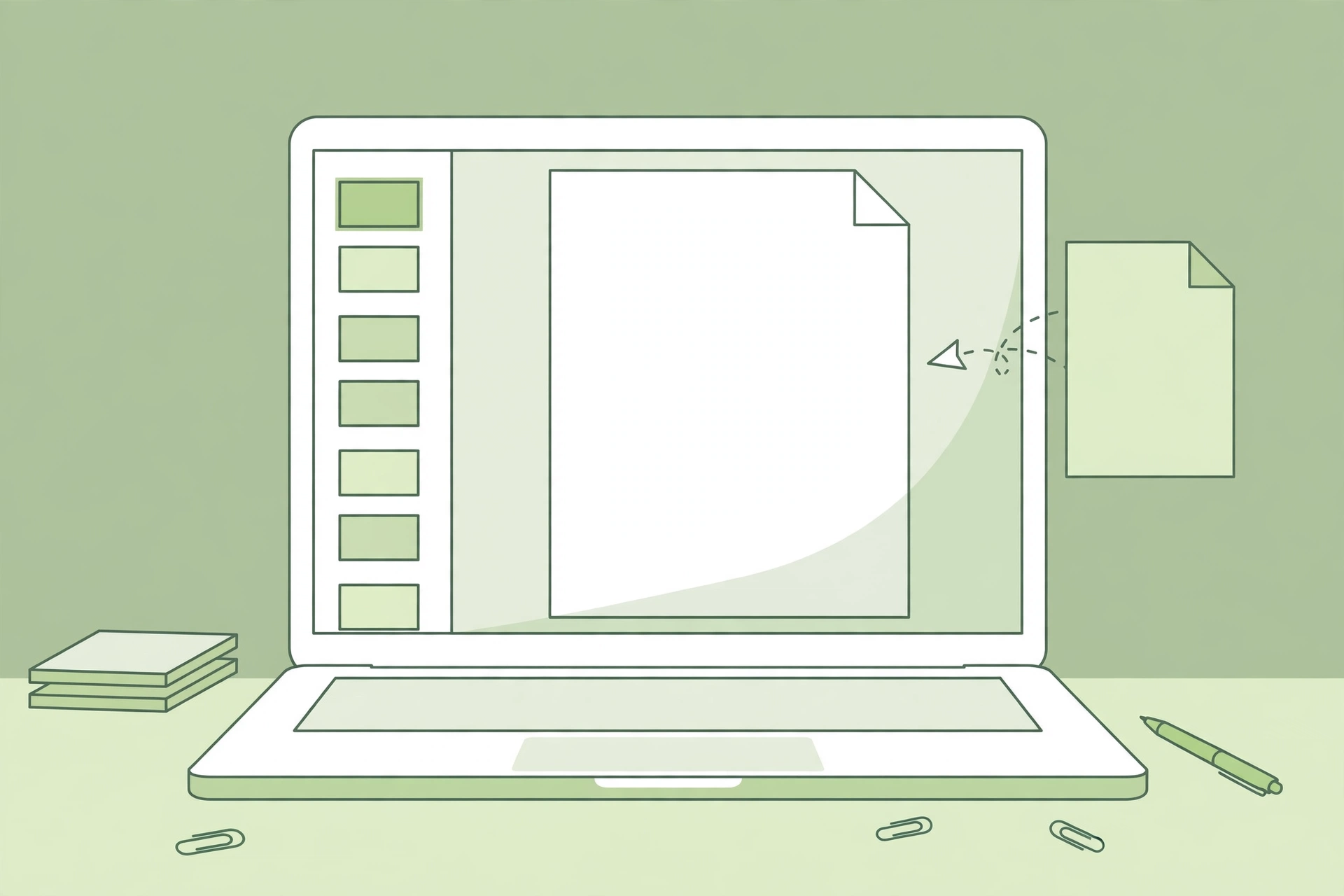
Method 2: Finder Quick Actions, the fastest way
When you only need whole files joined and the order is simple, Finder is faster than Preview. No app opens at all. Select the files, right-click, and you're done in under a minute.
Step 1: Put the files in one folder. Move the PDFs you want to join into one folder. Then rename them so they sort in the order you want, for example "1-cover-letter.pdf", "2-cv.pdf", "3-certificates.pdf". This step matters, because Finder merges the files in the order you select them, and numbered names make the order obvious.
Step 2: Select the files. In Finder, hold the Command key and click each PDF in the order you want them to appear in the final file.
Step 3: Create the PDF. Right-click one of the selected files, open Quick Actions, and click Create PDF. macOS builds the merged file in the same folder within seconds.
Step 4: Rename it. The new file gets a generic name, so rename it right away, giving it a clear name like "Application - Your Name.pdf". A clear name matters when you attach it to an email or a form.
This method needs macOS Mojave (10.14) or later, which covers every Mac sold in the last several years. If Quick Actions doesn't show Create PDF, select the files and look for the Create PDF button in the Finder Preview pane instead. If you don't see the Preview pane, choose View, then Show Preview. And if that is missing too, use the Preview method above, which works on every Mac.
Finder has one real limit: it only joins whole files. It can't reorder pages inside a file, remove a page, or shrink the result. If you need any of that, use Preview or the browser method below.
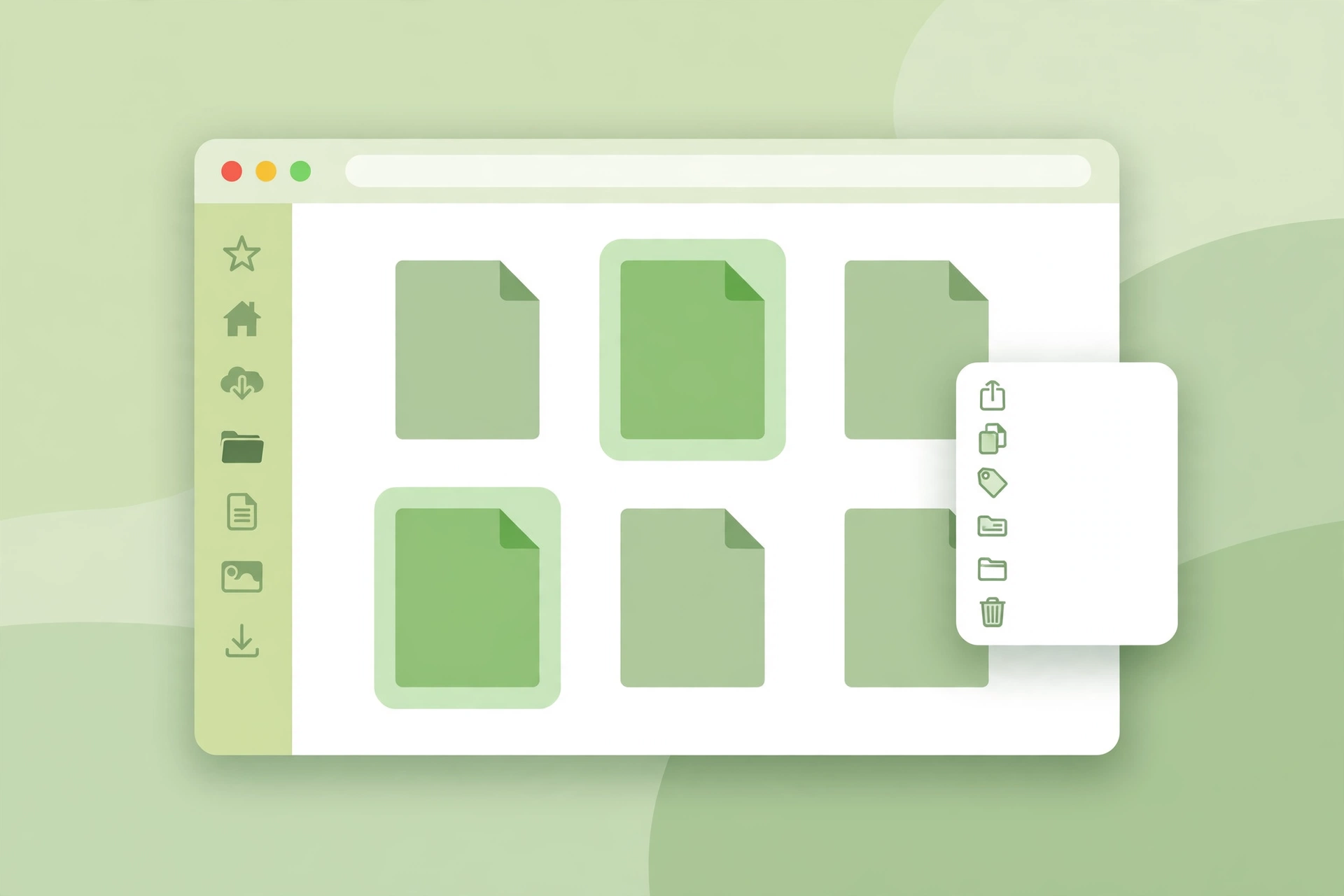
Method 3: the browser method, for everything else
This is the method to use when the built-in options don't fit. The files are in the wrong order and you'd rather click arrows than drag thumbnails. You're on a borrowed Mac and don't want to learn its menus. Or you want the merge done in about a minute, with no app to open and nothing to install.
Step 1: Open the merge tool. In Safari or Chrome on your Mac, open the free Merge PDF tool. The page loads once, then works in your browser.
Step 2: Add your PDFs. Click the file picker and choose your PDFs. You can add two files, or twenty. Click the picker again to add more files later if you forgot one.
Step 3: Arrange the order. Use the up and down arrows next to each file to put them in the order you want. Cover letter first, CV second, certificates last, in a job application. For a visa application, follow the order the embassy asks for, and read our guide to merging PDFs for a visa application before you start.
Step 4: Merge and download. Click Merge, wait a few seconds, then download the result. On a Mac the file lands in your Downloads folder. Rename it right away, while you still remember what it is.
The tool on this site processes everything in your browser with pdf-lib, so your files never leave your Mac. That matters when the documents are yours: a CV has your address and phone number on it, and a visa file has your passport details. No upload means no copy sitting on a server, no deletion timer to trust, and nothing to leak. Most other free online tools upload a copy to their server, so check before you use one for sensitive files.
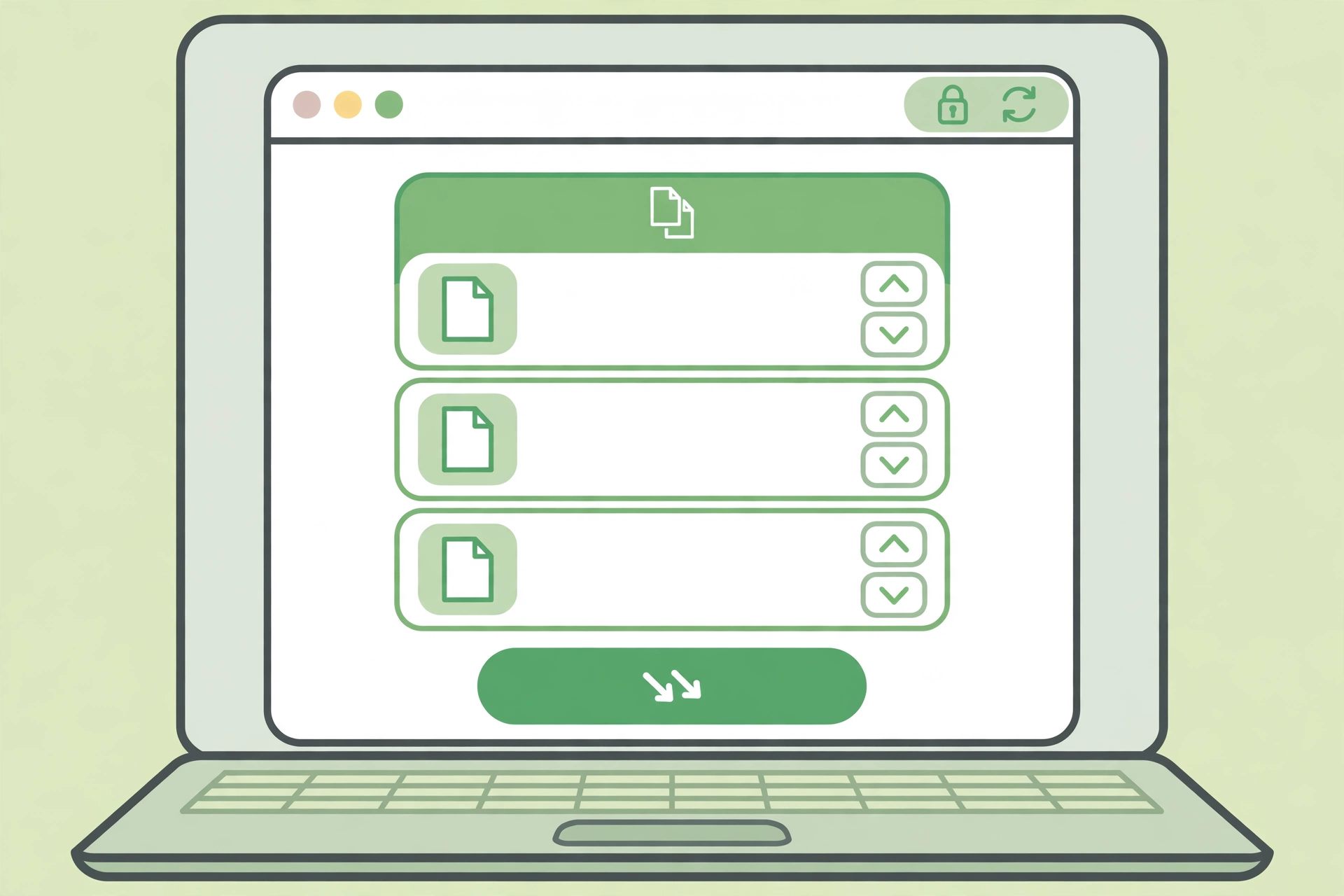
Which method should you pick?
All three methods are free, and all three work. The right one depends on what the job needs from the merge.
| Method | Best for | Page control | Speed |
|---|---|---|---|
| Preview | Reordering pages, merging some pages | Full, drag any page | A few minutes |
| Finder Quick Actions | Joining whole files fast | None, whole files only | Under a minute |
| Browser tool | Any Mac, exact file order, no menus | Full file order, with arrows | About a minute |
A simple way to choose: use Finder when you just need whole files joined and you're in a hurry. Use Preview when the order of the pages matters, or you only want some pages from a file. Use the browser tool when you want the simplest steps, or when you're on a Mac that isn't yours and you don't want to change anything on it.
How to merge only some pages from a PDF
Sometimes you only need pages 2 to 4 of a report, not the whole thing. Preview handles this without any extra tool, and it takes less than a minute once the sidebar is open.
Step 1: Open both PDFs in Preview. Open the first PDF, then open the second one in its own Preview window. Choose View, then Thumbnails, in both windows, so you can see the pages.
Step 2: Select the pages you want. In the second window, click the pages you want to take. Hold Command and click to pick separate pages, hold Shift and click to pick a range, or press Command + A to take them all.
Step 3: Drag them across. Drag the selected thumbnails into the first window's sidebar, dropping them between the pages where they belong. Then choose File, then Export as PDF, and save the result.
You can also pull pages out the same way. Select thumbnails in Preview and drag them to the desktop, and Preview creates a separate PDF with just those pages. That's the fastest way to split off a few pages without opening the Split PDF tool, and it pairs well with our guide to splitting PDF pages.
What Preview and Finder cannot do
Built-in tools are free and fast, but they have edges. Knowing them now saves you a surprise later.
Locked PDFs will not merge. If a PDF is password-protected or encrypted, Preview can't open it for merging, and most merge tools can't either. To check, open the file in Preview, choose Tools, then Show Inspector, and look at the permissions. The fix is to remove the password first, if you know it, or ask whoever sent the file for an unlocked copy.
Merging does not shrink anything. Preview joins pages without re-encoding them, so the merged file ends up about as big as the files added together. A 40 MB result will still bounce back from an email form. After merging, open the Compress PDF tool and shrink the result before you send it. If your file is too big for email, our guide to fixing a PDF that is too big to email walks through five fixes.
There is no batch mode. Preview merges one set of files at a time. If you merge PDFs every day, that gets old fast. For repeat jobs, build a small Automator workflow instead: open Automator, choose New Document, then Workflow, drag the "Combine PDF Pages" action into the workflow, add your files, set it to append pages, and click Run. Save it as an app and the next merge is one double-click.
Preview cannot rewrite text. It can move, delete, and rotate pages, and it can add notes and signatures, but it can't change the words already inside a PDF. For that you need a full PDF editor, not a merge tool.
Common mistakes and fixes
Merging into the original and losing it. Preview saves as you go, so an edit can overwrite the file you started with. Fix it by duplicating the first PDF before you start, and by always using File, then Export as PDF, to save the merged file under a new name.
Wrong order from Finder. The files merged in the order they were selected, not the order you intended. Fix it by renaming files with numbers before you start and checking the order in Preview before you export.
"This PDF is locked" error. Fix it by removing the password first, or by asking the sender for an unlocked copy. No merge method on a Mac can open an encrypted PDF while it's locked.
Merged file too big to send. Fix it by compressing the result with the Compress PDF tool, or by splitting off pages you don't need with the Split PDF tool.
Pages upside down or sideways after merging. Fix it by selecting the thumbnails in Preview, choosing Tools, then Rotate Left or Rotate Right, until every page reads the right way up, then export again. If a scanned page came out sideways, our guide to fixing a sideways scanned PDF covers it in detail.
The new file has a generic name. Fix it by renaming the merged file as soon as it appears. A file called "merged.pdf" looks careless in a job application and gets lost in a Downloads folder full of files with the same name.
Frequently asked questions
Can I merge PDFs on a Mac without installing anything?
Yes. Preview and Finder are built into macOS, so nothing needs installing. Preview gives you full control over pages, while Finder Quick Actions joins whole files in seconds. A browser-based merge tool also works with no install and no account.
How do I merge PDFs in Preview on Mac?
Open the first PDF in Preview, choose View, then Thumbnails, and click the thumbnail after which the new pages should go. Then choose Edit, then Insert, then Page from File, pick the second PDF, and click Open. Drag thumbnails to reorder, then choose File, then Export as PDF.
Why is Create PDF missing from Quick Actions?
Create PDF needs macOS Mojave (10.14) or later. If your Mac is newer and the option is still missing, select the files and try the Create PDF button in the Finder Preview pane, or choose View, then Show Preview, to reveal it. If that is missing too, merge in Preview instead.
Does merging PDFs in Preview reduce quality?
No. Preview joins the pages without re-encoding them, so text and images keep their quality. The file size is about the sum of the files you joined. If the result is too big to send, compress it afterwards with a PDF compressor.
Can I merge a password-protected PDF on Mac?
No, not while it's locked. Preview and most merge tools can't open an encrypted PDF. Remove the password first, if you know it, or ask whoever sent the file for an unlocked copy, then merge as normal.
How do I merge PDFs on Mac in a specific order?
In Finder, select the files in the order you want them, or rename them with numbers first so they sort in the right order. In Preview, drag the page thumbnails into the order you want. In a browser tool, use the up and down arrows next to each file.
Is it safe to merge PDFs online on a Mac?
It depends on the tool. The merge tool on this site runs in your browser, so your files never leave your Mac. Most other free online tools upload a copy to a server. Use on-device methods for passports, bank statements, and contracts.
Try the free tool
The short version: Mac users already have two free ways to merge PDFs, Preview for control, Finder for speed, and a browser tool covers everything else in about a minute. If the file is sensitive, pick the route that never uploads it.
When you're ready, open the free Merge PDF tool on your Mac, add your files, arrange them, and download the result. If you want the full version on any computer, read how to merge PDF files online free. If the file is for a visa application, read how to merge PDFs for a visa application first. And if you are merging on your phone instead, read how to merge PDFs on your phone without an app.
Sources: the Preview and Finder steps follow Apple's guide to combining PDFs and Adobe's guide to merging PDFs on a Mac. Menu labels vary between macOS versions, so follow the labels on your own Mac.
Privacy note: the Merge PDF, Split PDF, Compress PDF, JPG to PDF, and PDF to JPG tools on this site need no account and no signup. Your files are processed in your browser and never uploaded, never stored, and never shared with third parties. When you close the tab, the working files disappear with the session.
Last updated: November 7, 2026
Related tools and guides
Merge PDFs for a Visa Application
One file, in the right order, for sensitive documents.
Read article →